
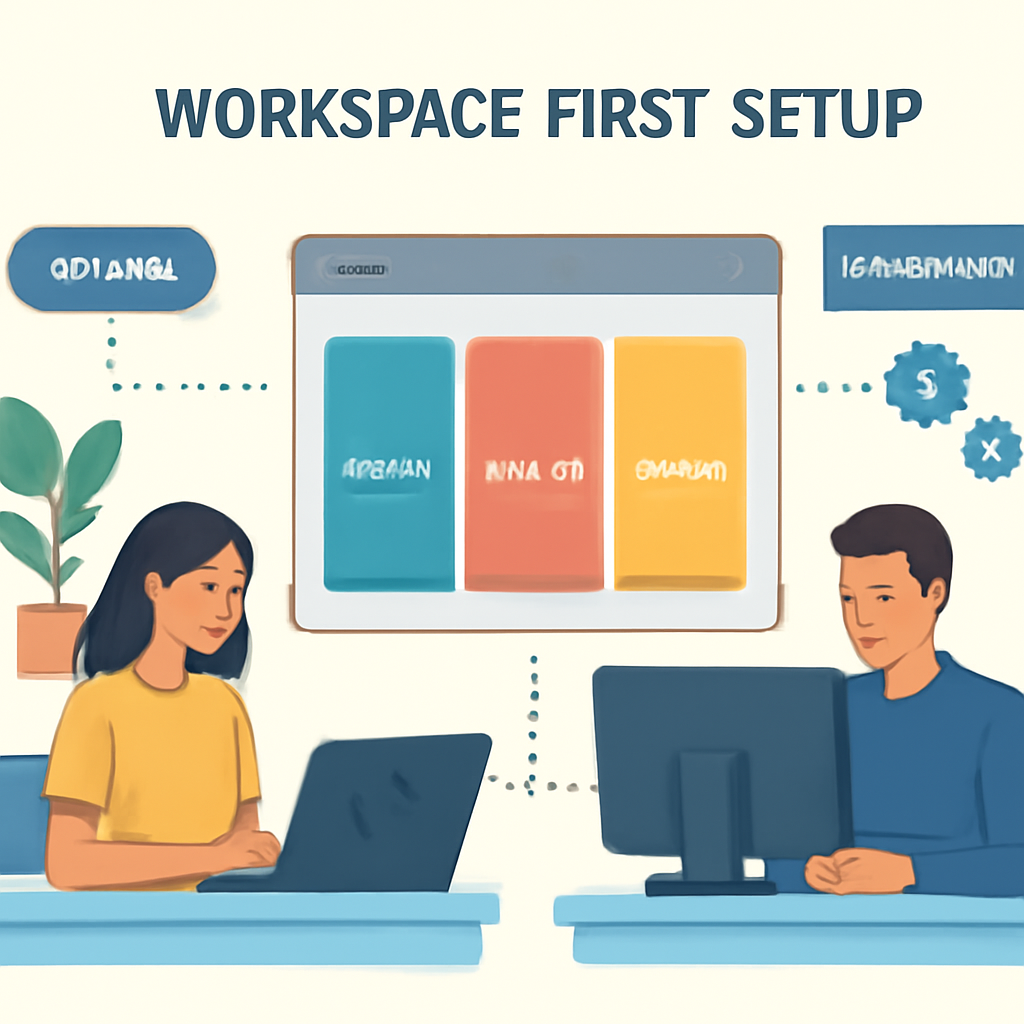
Introduction: From “Weekly Planning” to “Always-On Publishing”
Weekly content planning is a solid habit—but it often breaks down in execution. Drafts get stuck in review, publishing becomes manual, and consistency slips when the team gets busy. Inkpilots is designed to close that gap by turning a plan into a repeatable system: workspaces to separate brands, agents to generate content on a schedule, libraries to keep writing grounded in your internal context, and a built-in publishing site for distribution.
In this guide, you’ll learn how to map your weekly planning process into an automated publishing workflow—without losing editorial control.
What “Automated Publishing Workflow” Means in Inkpilots
In Inkpilots, automation doesn’t mean “hands-off.” It means you define a system once, then let it run consistently. The core building blocks are: a workspace (your brand container), one or more scheduled agents (your content producers), optional libraries/files (your source of truth), and generated articles you can edit and publish to a public workspace site.
- Workspaces: Isolated containers for a brand, client, or product—each workspace owns its agents, files, and articles.
- Agents: Scheduled AI workers that generate content according to your configuration (topic, tone, language, and schedule).
- Libraries (files): Optional uploads that provide internal facts and style guidance so content matches your reality.
- Publishing: Articles can be published and served on your public workspace site (and optionally a custom domain).
The Weekly-to-Automated Blueprint (Plan → Configure → Generate → Publish)
Think of your weekly content meeting as an input step. Your goal is to translate that weekly plan into agent instructions and schedules that can execute repeatedly.
Step 1: Set Up One Workspace Per Brand (So Automation Stays Organized)
Start by creating a workspace for each brand or client. This keeps agents, files, and outputs separated—and it also keeps usage tracking and permissions clean. Workspaces also come with a workspace slug, which becomes part of your publishing URL.
- Choose a clear workspace slug (it powers the public site URL structure).
- Invite teammates and assign roles (Owner/Admin/Member) to match responsibilities like billing, content operations, and editing.
Alt text: Team planning around a desk with notebooks and a laptop, representing structured content operations.
Step 2: Convert Your Content Plan Into Agent Instructions
Your weekly content plan usually includes themes, target audiences, preferred formats, and product priorities. Inkpilots agents are built to operationalize those decisions: you set the agent’s goal/topic, writing instructions, language, tone, and schedule—then it generates new articles automatically.
A practical approach is to create multiple agents per workspace—each agent tied to a repeatable content lane (for example: “How-to guides,” “Product education,” or “Industry explainers”). Inkpilots supports multiple agents per workspace, which is useful when you want different topics or tones running in parallel.
Step 3: Add Libraries (Files) to Keep Automation Accurate and On-Brand
Automation is only as reliable as the context you give it. Inkpilots libraries let you upload internal knowledge and guidance so agents can write with your facts and your style. This is especially helpful for brand voice, positioning, product details, and “things we do/don’t say.”
- Upload brand messaging and tone guidelines.
- Include product or service one-pagers (kept current).
- Add editorial rules (formatting, disclaimers, terminology) so outputs are easier to review.
Step 4: Schedule Generation Like a Real Publishing Calendar
Inkpilots agents can be scheduled hourly, daily, weekly, or monthly. Configure schedules that match your publishing commitments—for example, one weekly “pillar” article plus two shorter mid-week posts.
Keep expectations realistic: generation time can vary from seconds to minutes depending on the requested depth/length and whether you’re enriching the content with workspace files. Build that time into your review window.
Step 5: Publish to Your Workspace Site (and Make It Discoverable)
Inkpilots can serve your published articles directly on a public workspace site. Your primary publishing URL follows this pattern: https://<workspace_slug>.inkpilots.com, and articles publish under https://<workspace_slug>.inkpilots.com/<article_slug>.
Two important operational details: your workspace must be set to public for the site to be accessible, and the public site uses your workspace header configuration (brand info and style).
- When you’re ready, enable workspace visibility to public so the site can be visited and indexed.
- Customize appearance and brand header details in workspace settings (title/description/social links/style/CTA).
- If needed, connect a custom domain; Inkpilots verifies domain ownership via DNS records.
A Practical Operating Rhythm (What Your Week Can Look Like)
A reliable automated workflow usually pairs a short planning checkpoint with lightweight editorial QA:
- Monday (Planning): Confirm weekly themes, update libraries if anything changed (product updates, positioning, terminology).
- Mid-week (Review): Review newly generated drafts; fix accuracy, add first-hand examples, and ensure claims are supported by your internal sources.
- Publish window: Publish approved articles to the workspace site; confirm the workspace is public if you expect external readers.
- Monthly (Governance): Check quotas and tune schedules if you’re producing more (or less) than planned.
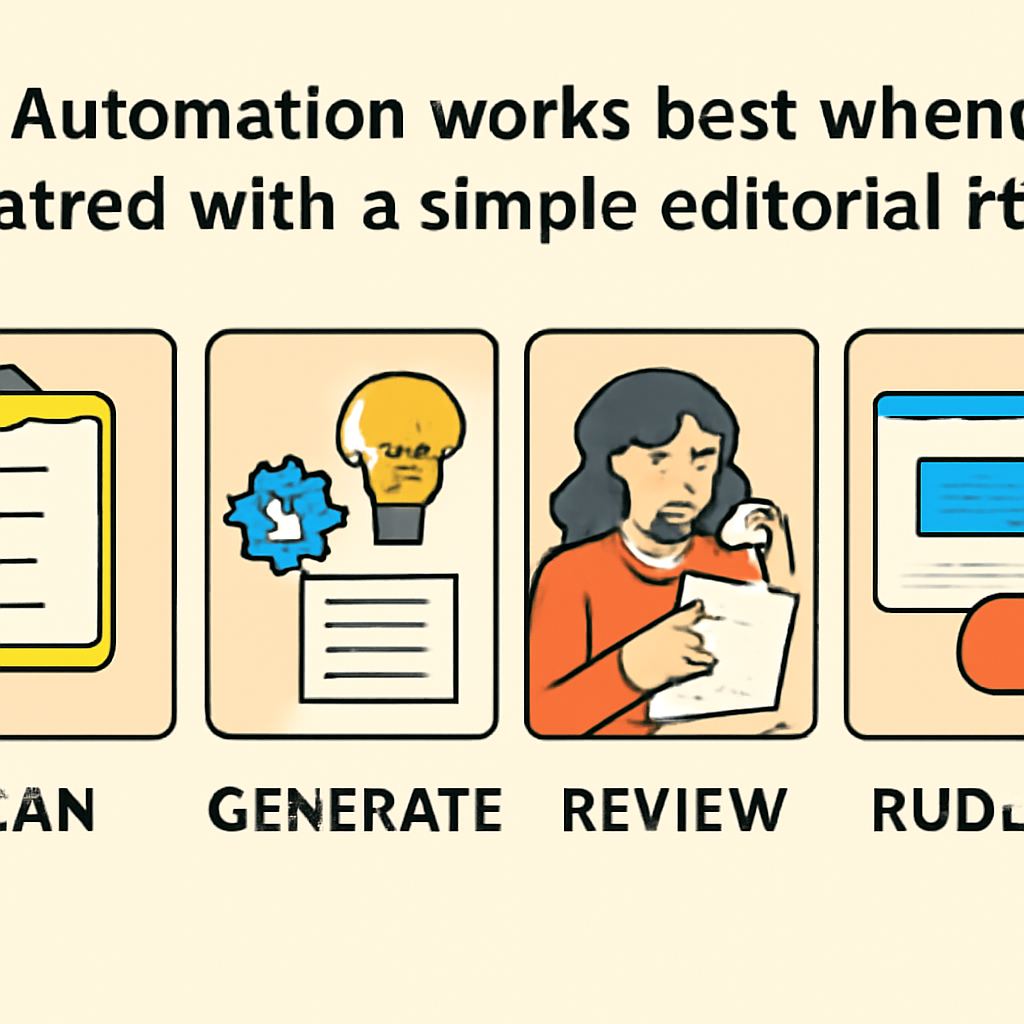
Alt text: A paper planner and pen on a desk, symbolizing a repeatable weekly publishing cadence.
Best Practices for High-Quality Automated Publishing
- Use one workspace per brand/client to avoid mixing voice, assets, and outputs.
- Split by content lane: multiple agents per workspace let you maintain consistent formats and responsibilities.
- Keep libraries current: treat your uploaded files as living documentation; update them when your product, offers, or policies change.
- Design for review: automation reduces drafting time, but editorial review protects accuracy, compliance, and brand trust.
- Remember visibility: if the public site isn’t showing, the most common issue is that the workspace is still private.
Conclusion: Build the System Once, Then Let It Run
Weekly content planning is valuable, but it shouldn’t be where your consistency ends. With Inkpilots, you can turn a weekly plan into an automated workflow by organizing work into workspaces, configuring scheduled agents, grounding outputs with libraries, and publishing to a public workspace site (or custom domain).
The end result is a content operation that ships reliably: less manual busywork, fewer missed weeks, and a publishing cadence your team can actually sustain.